
Обзор библиотеки в Стим

Что такое библиотека Стим, как пользоваться этим инструментом? Даем подробный обзор одной из важнейших функций игровой платформы, без которой не обойтись тем, кто играет – будь то простой шутер или сложная стратегия. Поехали!
Подробный обзор интерфейса
«Моя библиотека» в Стим – это место хранения пользовательского контента. Именно сюда попадают купленные вами игры или добавленные бесплатные игрушки. Все, во что вы играете, находится в этой вкладке платформы – сюда попадает контент, купленный через официальный магазин, а также игрушки, полученные в подарок, приобретенные на других официальных ресурсах или активированные ключами. Здесь собрана полная коллекция, которая может насчитывать тысячи, сотни тысяч экземпляров. А может состоять из одной-двух игр! Все они в обязательном порядке являются лицензионными.

Начинаем разбираться, где в Стиме библиотека! Ответ на этот вопрос максимально прост – для этого нужно открыть десктопное приложение и авторизоваться при необходимости. Ищите вкладку «Library» на верхней панели. Первая задача выполнена, мы нашли место хранения контента. Давайте воспользуемся доступными опциями, поработаем с игровой платформой.
Важно! Библиотека Steam работает только в десктопном клиенте, через веб-версию открыть хранилище не получится.
Посмотрите на экран справа – здесь настраиваются разделы пользовательского хранилища.

А где находится библиотека Стим, в которой лежат уже купленные или бесплатно загруженные стрелялки и стратегии? Листайте чуть ниже – до раздела «Все». Вам доступен инструмент удобной сортировки:

Тут есть кнопка «Добавить новый раздел». Вы можете самостоятельно наполнять его содержимым (доступен аналогичный инструмент сортировки):

Где находится библиотека в Стиме разобрались! Пора понять, что в ней лежит – для этого переведем взгляд на панель слева, здесь находится полный список загруженного контента. Если вы выделите курсором любую игру, сможете посмотреть страницу в магазине, поработать с настройками, пролистать контент сообщества или добавить в избранное.
Чуть выше есть строка поиска – рядом кнопка настроек! Это очень интересно, вы можете искать по таким параметрам:

Классная функция – подобранные по определенным параметрам игры вы можете собирать в динамические коллекции, что значительно упорядочивает хранилище.
Мало знать, как зайти в библиотеку Steam – нужно уметь пользоваться коллекциями! Эта иконка (четыре квадратика) находится чуть правее. Здесь можно работать с существующими статичными или динамическими коллекциями и создавать новые по определенным признакам.

Рядом находятся инструменты сортировки:
Чуть ниже ответ на вопрос, как добавить в библиотеку в Стиме игрушку – щелкните по плюсику и выберите свой вариант. Контент можно загружать из магазина или через цифровой ключ.
Подробно рассказали вам о том, как зайти в библиотеку в Стиме и воспользоваться всеми доступными функциями инструмента. Это неотъемлемая часть платформы, вы обязательно должны научиться ей пользоваться!
Steam Family Sharing
Поделитесь своей библиотекой игр в Steam с родными и гостями
У вас общий компьютер?
Теперь вы можете делиться и играми.
Family Library Sharing позволяет членам семьи и их гостям играть в игры друг друга, при этом зарабатывая свои собственные достижения и имея отдельные сохранения, доступные через Steam Cloud. Всё это становится доступно после авторизации общих компьютеров и пользователей.
Запросить доступ.
Делитесь играми уже сегодня
Чтобы узнать больше о Steam Family Library Sharing, ознакомьтесь с ЧаВо ниже, а потом присоединяйтесь к обсуждениям в группе.
Хотите сыграть в эту игру?
У близкого человека установлена игра, в которую вы хотите поиграть? Отправьте ему запрос на авторизацию. После авторизации вы сможете загружать и играть в игры из библиотеки владельца аккаунта.

Как мне включить Family Library Sharing на моем компьютере?
Перед включением Family Library Sharing убедитесь, что у вас включен Steam Guard. Для этого откройте клиент Steam и зайдите в меню Steam → Настройки → Аккаунт. Затем в меню Настройки → Семья (или Настройки → Family Library Sharing в режиме Big Picture) включите Family Library Sharing. Там же вы можете авторизовать компьютеры и пользователей, которым вы хотите предоставить доступ к библиотеке.
Есть ли ограничение на число компьютеров или друзей, которым я могу дать доступ к моей библиотеке?
Да. Вы можете авторизовать Family Library Sharing на 10 устройствах одновременно и выбрать до 5 аккаунтов, которые получат доступ к вашей библиотеке на любом из авторизованных вами компьютеров.
Должен ли я находиться в сети, чтобы играть в игры, которыми со мной поделились?
Да. Вы должны находиться в сети, чтобы получить доступ к играм, которыми с вами поделились.
Можно делиться отдельными играми или только всей библиотекой сразу?
Библиотеками можно делиться только целиком.
Можно ли делиться с родными и близкими всеми играми в Steam?
Нет, из-за технических ограничений некоторые игры в Steam могут быть недоступны. Например, если для них требуются дополнительные ключи активации, сторонние аккаунты или подписки, то такими играми делиться нельзя.
Могут ли два пользователя делить библиотеку и играть в одно и то же время?
Нет, библиотекой может пользоваться только один аккаунт.
Если я авторизую устройство, чтобы одалживать мою библиотеку другим, это как-то ограничит мне доступ к моим играм?
Вы — хозяин аккаунта, поэтому вы всегда можете получить к ней доступ и играть в игры в любое время. Если вы запустите игру в тот момент, когда другой пользователь уже играет в одну из ваших игр, ему дадут несколько минут, чтобы купить игру или выйти из неё.
Иногда игры, к которым мне дали доступ, недоступны. Почему?
Игры, к которым вам дали доступ, можно запускать только на устройствах, которые были подтверждены хозяином библиотеки. Одолженные игры будут недоступны даже на авторизованном устройстве, если хозяин пользуется своей библиотекой в этот момент.
Кто может получить доступ к дополнительному и внутриигровому контенту, который связан с игрой?
Дополнительный контент хозяина аккаунта будет доступен для гостя, только если у него нет основной игры. Гость не сможет приобрести дополнительный контент для основной игры, которой он не владеет. Любой игрок может приобретать, обменивать, зарабатывать или иным образом получать внутриигровой контент во время игры, но внутриигровыми предметами нельзя делиться между аккаунтами. Эти предметы остаются в собственности того аккаунта (пользователя), который приобрел или получил их, вне зависимости, чей это аккаунт — гостя или хозяина основной игры.
Можно делиться между регионами контентом, на котором стоят региональные ограничения?
Нет, региональные ограничения для одалживаемого контента остаются в силе.
Накажут ли меня, если кто-то будет мошенничать или использовать читы в моих играх?
Ваши привилегии Family Library Sharing могут быть аннулированы, а сам аккаунт может быть заблокирован системой VAC, если ваша библиотека будет использоваться для читерства или мошенничества. Также учтите, что играми, заблокированными системой VAC, нельзя поделиться. Мы рекомендуем вам авторизовывать только те компьютеры, чью безопасность вы можете проконтролировать. И, как обычно, никому не давайте свой пароль.
Как настроить «Семейный доступ» в Steam и дать доступ к своей библиотеке игр другу?

«Family Sharing» или «Семейный доступ» – отличная функция, которая открывает доступ к библиотеке другим пользователям, благодаря чему они могут играть почти во все ваши игры или наоборот. Это практически то же самое, если бы вы купили игру на диске и передали диск знакомому или другу.
Таким образом с компанией друзей реально сэкономить приличную сумму на покупках, ведь практически все новые игры можно в будущем приобретать совместно, если, конечно, у вас надёжные и проверенные друзья.
Как включить «Семейный доступ» в Steam?
Как отключить «Семейный доступ» в Steam?
Поругались или не поладили, поэтому теперь хотите закрыть доступ к своей библиотеке игр? Тогда вновь переходите во вкладку «Семья», но на этот раз переходите уже во вкладку «Другие компьютеры». В открывшемся окне будет представлен полный список компьютеров, которые имеют доступ к вашей библиотеке игр. И всё, что тут нужно сделать, так это нажать на кнопочку «Деавторизовать», после чего некогда верный и хороший друг лишится доступа к вашей библиотеке.
Почему некоторые игры недоступны в «Семейном доступе» Steam?
Да, функцию омрачает то, что некоторые современные новинки частенько выходят без поддержки семейного доступа. Как правило, разработчики не дают таких прав Steam исключительно из коммерческих соображений. Поэтому поиграть в некоторые новинки вся ваша дружная компания сможет лишь после того, как разработчики наконец-таки соберут долгожданные сливки.
Steam Library Manager
is a tool to manage your Steam, Origin and Uplay Libraries quick and easy. With SLM you can administrate all of your games and backups from one place. Drag and drop between libraries and backup folders with ease. Works with existing Steam Backups or opt to use SLM’s open system for fast updates and quick access to game files.
All suggestions are welcome and will help further development of SLM.
Steam Library Manager (SLM) is not affiliated with, sponsored by, approved by, or otherwise related to Valve Software, Steam, Electronic Arts or Ubisoft.
I’ve just released v1.6 with lots of improvements and changes.
You can see the list of changes from the release page.
Please report me if you encounter any bugs or issues, feature requests and ideas are also welcome.
As you may already know, i have started a poll in 27 Jun asking what you would like to see next in SLM.
After 3 weeks we have 85 total votes, here is the results overview of the poll.
(Image) [dl.dropboxusercontent.com]
With the recent changes i have made in class definitions, it is ‘almost’ super easy to do, one of the major issues was using the messagebox class from mahapps.metro ui framework, which i have just fixed with using a flyout panel. (Sneak-peak to the flyout panel [cdn.discordapp.com] )
However there is a few minor issues like game header images for other library types, like you ‘probably’ can’t simply call » /steam/apps/ /header.jpg»
We also need an ui overhaul, especially for task manager ui. With the addition of enabling/disabling parallel file transfers per-task, we are literally out of space (talking for the default/minimum resolution of SLM)
Another issue is; even tho it is the top voted request, i am not really sure it will have an use case for people as the last real request for implementing support for more library type (uplay in this case) goes back to 28 Jun 2018 [github.com] and i believe no one else ever asked for this afterwards.
The main and biggest issue i am having with this request since the beginning is that i can’t properly measure the file movement speed.
Yes, i know that SLM gives an overview about task that includes average speed and i believe it gives accurate results. but. have you ever run the same task for the second time?
Disk caching, Windows caching or ram caching, something there makes the process unrepeatable. (See the example here) [dl.dropboxusercontent.com]
To prevent this from happening i have tried things like memcleaner, disabling disk write cache in device manager, PM’ed Hillbert from Guru3d however i couldn’t find a solution. I’ve already done every possible improvement i can do to improve file transfer speeds, blindly.
Please be aware that SLM might be already using maximum of your hardware, your hardware or an AV software might be the reason of slower transfer speeds. If you still believe that SLM is not using maximum of your hardware, please help us find a way to properly benchmark the process; with ability to get same or closer readings within error margin.
Steam Library
Steam Library
Platform
Contents
Software
All software that has been purchased by the user will show up in their library, regardless of whether it is installed or not. Any software that is uninstalled will be shown in gray text, while installed software is shown in white. Free software that was previously downloaded by the user but uninstalled will be removed instead of being grayed out. Users may reinstall purchased software at any time by clicking the desired software and clicking «Install» where the «Play» button would usually be.
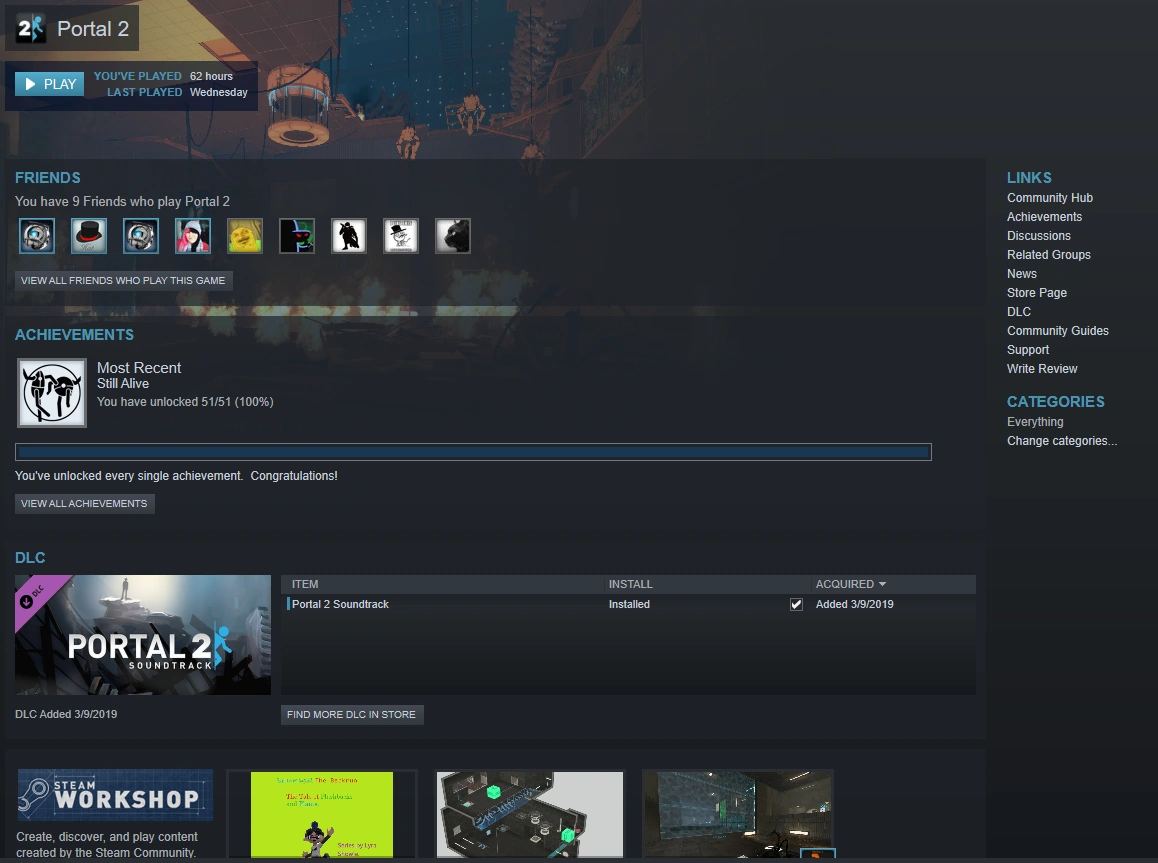
The software interface for Portal 2.
The software interface consists of multiple «layers». The software may be activated and run by clicking the «Play» or «Launch» button at the top of the interface, alongside the number of minutes or hours played and the last time the software was run.
Friends
The Friends tab shows all of the user’s friends that own the selected software, and shows all friends that are running the software currently.
Achievements
The Achievements tab shows your most recently earned achievement, progress to achievement completion, and locked achievements, as well as the ability to view all achievements for the software.
The DLC tab is only shown if any DLC is owned for the software. It shows if the content is installed, the date it was added to the account and the ability to browse more DLC pertaining to the software in the Steam Store.
Steam Workshop
If the software supports it, the Steam Workshop tab will appear, containing the three most popular items of the month, as well as the ability to browse the full Workshop section for the software.
Recent News
The Recent News tab shows all news filed to the software by trusted media outlets. The tab lists the three most recent articles, and has the ability to view all news pertaining to the software.
Screenshots
The Screenshots tab appears only if the user has taken at least one screenshot while using the software. It shows the three most recent screenshots, as well as a button with the remaining amount of screenshots displayed, and a button below to view the user’s complete screenshot library.
Management
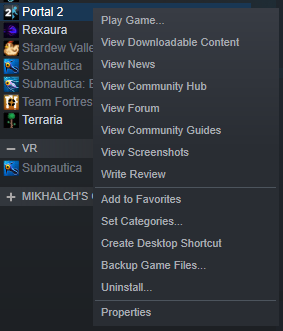
Portal 2′s additional management interface.
Additional management tools are provided to the user by right-clicking the software. Different functions appear based on the state of the software and whether certain features are enabled.
Play Game
Clicking on this portion starts running the selected software.
View Downloadable Content
Shows a list of all the DLC the user owns associated with the software. Appears only if any DLC has been added by the user.
View News
Shows the news feed for the selected software.
View Community Hub
Opens the Steam Community page associated with the software.
View Forum
Opens the Forum tab of the Steam Community page associated with the software.
View Community Guides
Opens the Guides tab of the Steam Community page associated with the software.
View Screenshots
Shows all screenshots taken by the user while in the software. Appears only if any screenshots have been taken by the user while in the selected software.
Write Review
Opens the Steam Store page associated with the software and opens a new review.
Manage Downloads
Opens the download management tab associated with the software. Appears only if there is an update pending.
Add to Favorites/Remove from Favorites
Adds/Removes the selected software to/from the user’s Favorites list.
Set Categories
Allows the user to assign categories to the selected software.
Create Desktop Shortcut
Creates a shortcut on the user’s desktop for the selected software.
Backup Game Files
Uninstall
Opens the prompt menu to uninstall the selected software.
Properties
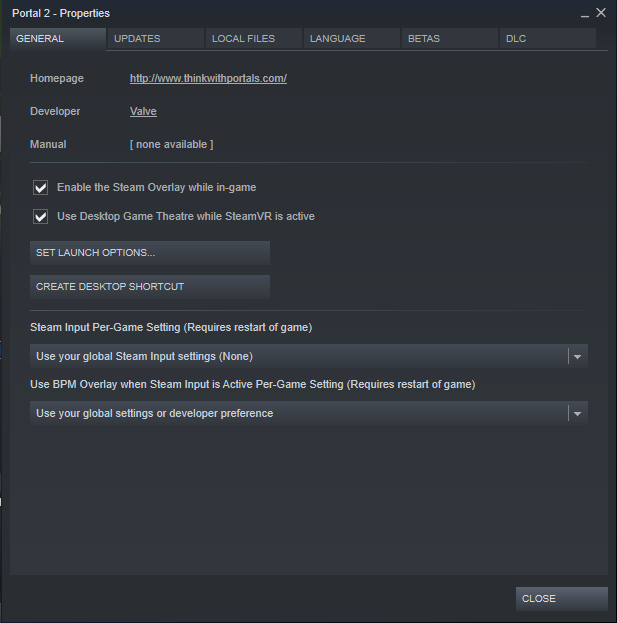
Portal 2′s properties menu.
The Properties menu serves as the advanced software management tool that can be used to fine-tune and change the software in various different ways.
General
The General tab lists the software’s homepage, developer and the manual.
Enable the Steam Overlay while in-game
Toggles whether or not to activate the Steam Overlay while in-game. Defaults to activated.
Use Desktop Theatre while SteamVR is active
Toggles whether the software will use the Desktop Theatre mode supported by SteamVR. Defaults to activated
Set Launch Options
Sets a custom command to activate whenever the software is launched. Text-based input.
Create Desktop Shortcut
Creates a shortcut on the user’s desktop for the selected software.
Steam Input Per-Game Setting
Chooses whether or not to force on or off custom input for the selected software. Defaults to user’s global Steam Input settings.
Use BPM Overlay when Steam Input is Active Per-Game Setting
Chooses whether or not to use the Big Picture Mode overlay instead of the default Steam Overlay. Defaults to the user’s global settings or the software developer’s preference.
Updates
Automatic updates
Chooses whether or not to update the software upon update release. Defaults to user’s global update setting.
Background downloads
Chooses whether or not to update other software while running the selected software. Defaults to the user’s global background downloads setting.
Steam Cloud
Chooses whether or not to backup software files to the Steam Cloud. Defaults to activated.
Local Files
Text displays how much storage the software is taking up on the drive Steam was installed on.
Browse Local Files
Opens the default file browsing software for the operating system and opens the path to the software’s local files.
Backup Game Files
Backs up the software’s files to the Steam Cloud. If disabled, a prompt will appear asking you to enable cloud synchronization.
Uninstall Game
Uninstalls the selected software from the user’s drive. This option will remove all local files related to the software
Verify Integrity of Game Files
Checks for any installations to the software’s files that were not a part of the original installation and removes them.
Language
The user may select which language they wish to play the software in. Appears only if the software is multilingual, and not all languages are supported for a specified software.
Betas
Beta Opt-In
Chooses which beta to apply onto the software, if any. Defaults to none.
Beta Code
Prompts the user for a code to activate a specific beta for the software, and adds it to the Beta Opt-In dropdown.
This tab appears only if any DLC is a part of the user’s account. Allows installation, shows method of acquisition and the installation state. The user may also view all downloadable content associated with the software.